Guide · SMS
DLT setup in the console: PE ID, headers, templates
Register on your operator's DLT portal, then add your PE ID, sender IDs and content templates in SMS → Assets so every send carries the right DLT details.
Pixabits team · · 7 min read
On this page
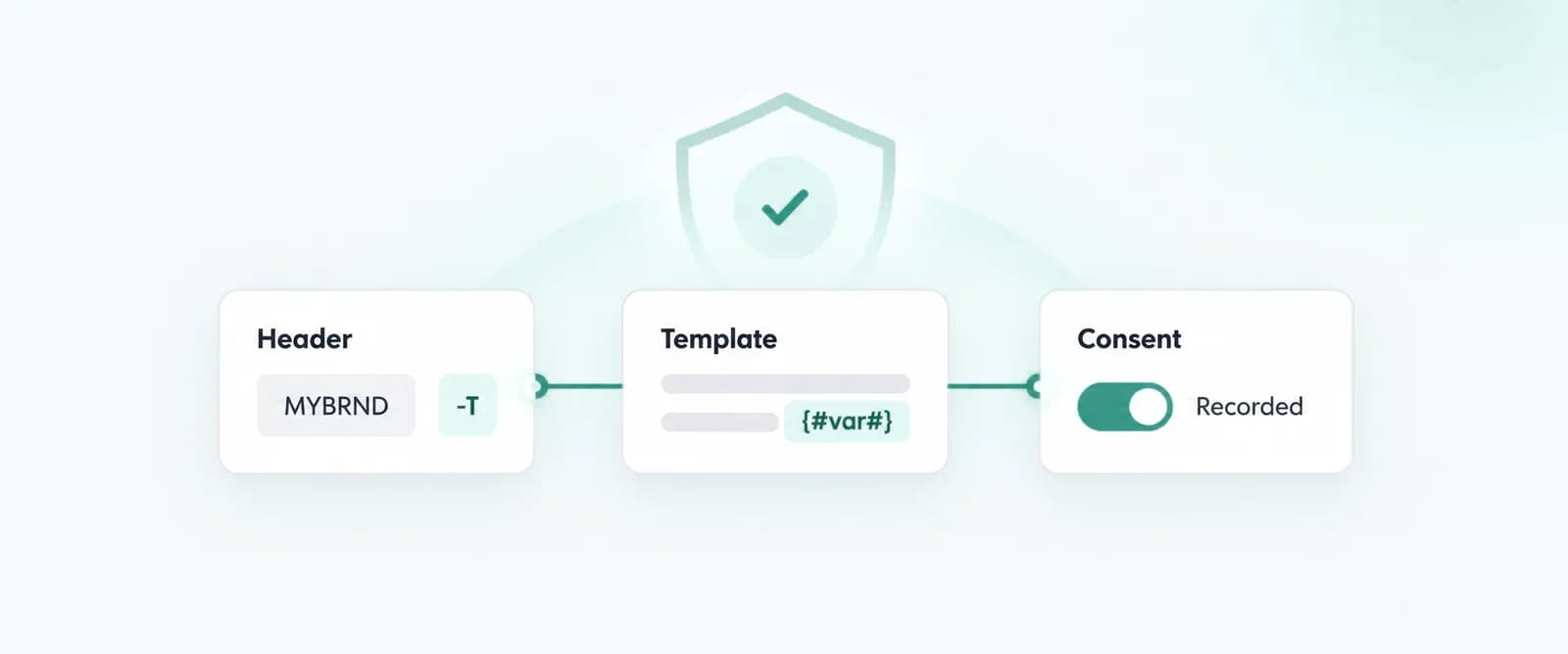
Commercial SMS in India goes through the operators' DLT (Distributed Ledger Technology) platforms. You register your business, headers and templates there first. The Pixabits console then stores those IDs and checks them on every send.
Where registration happens
DLT registration and approval happen on an operator's DLT portal, not in Pixabits. Adding a header or template in the console records the details you already registered; it does not submit anything to DLT. See the DLT & TRAI compliance playbook for the rules.
The order that works
Register the entity on a DLT portal
You get a Principal Entity ID (PE ID).
Register your headers
The sender IDs your customers see (up to 11 characters), each with its type: promotional, service or transactional.
Register content templates
The exact message text with variable parts marked, linked to one header. You get a DLT template ID.
Add all three in the console
In SMS → Assets: PE IDs, then Sender IDs, then Templates, linking each to the one before.
1. Add your PE ID
Open SMS → Assets → PE IDs and choose Add PE ID. Only PE ID and Entity Name are required. Operator, contact name, mobile, email and address are optional records for your team.
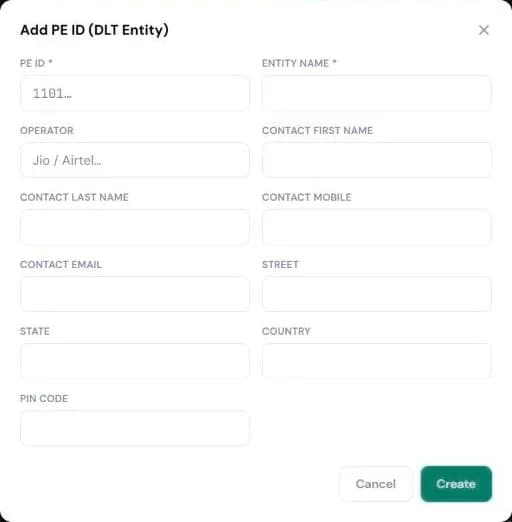
Each PE ID can be added once per account; a duplicate is rejected. Only admins and sub-admins can add one.
2. Add your sender IDs (headers)
Open Sender IDs and choose Add Sender ID. Enter the header exactly as registered (up to 11 characters, saved in capitals), its type (Transactional, Service or Promotional), a title for your team and the linked PE ID.
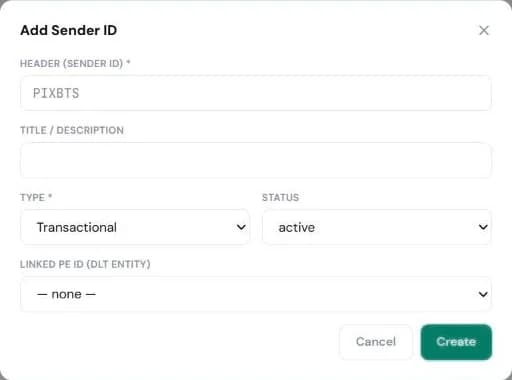
Linking the header to its PE ID matters: when a template has no PE ID of its own, Pixabits uses the PE ID of the header's entity at send time.
3. Add your templates
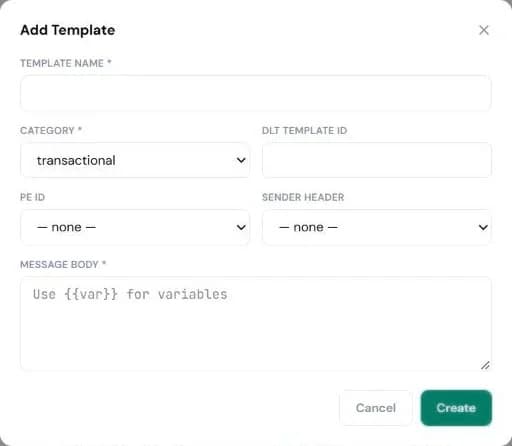
Open Templates and choose Add Template. Fill in a name, the category (transactional, promotional, service or otp), the DLT template ID, the PE ID, the sender header it is registered to and the message body exactly as approved on DLT.
- Keep DLT variable slots such as
{#var#}in the body. When you send, the API fills them in order fromvar1,var2, … - A DLT template ID can be added once per account.
- The sender header must already exist in Sender IDs, or the template is rejected.
- Templates are saved as approved, because approval already happened on DLT. Check the details before you save.
What Pixabits checks on every send
For each message sent with POST /api/v1/sms/send, Pixabits checks that:
- the template belongs to your account and its status is approved;
- the sender ID is registered and active for your account;
- the template is registered for that sender ID;
- the API key is allowed to use that sender ID and template, if it is restricted.
It then submits the message with the template's DLT template ID and the PE ID: the template's own PE ID first, then the pe_id in the request, then the PE ID of the header's entity.
Common mistakes
| Symptom | Likely cause | Fix |
|---|---|---|
INVALID_SENDER on send | Header missing, misspelt or inactive in Sender IDs. | Add it exactly as registered and set it active. |
TEMPLATE_SENDER_MISMATCH | Template saved against a different header. | Edit the template's sender header, or send from the header it is registered to. |
| Operator rejects the message | The text does not match the registered template, or a variable holds more than the template allows. | Copy the approved body exactly; change only the variable parts. |
| Template rejected when saving | Its sender header is not in Sender IDs, or the DLT template ID already exists. | Add the header first; reuse the existing template entry. |